Microsoft Work Account — Admin Approval Required
Steps for your IT admin to let your team connect work Outlook accounts to Sophiie.
Microsoft Work Account — Admin Approval Required
Steps for your IT admin to let your team connect work Outlook accounts to Sophiie.
Not the right person to do this? If you saw an "admin approval required" prompt while connecting your Outlook account, send this page to whoever manages your organisation's Microsoft admin centre. They complete it once and your whole team can connect.
What this is
When someone connects a Microsoft work or school account to Sophiie, some organisations block the connection with a prompt saying an administrator must approve the app. This happens because the organisation's Microsoft 365 / Entra ID tenant restricts which apps and permissions end users may consent to.
The fix is two small settings changes in the Microsoft Entra admin center. An administrator makes them once and they apply to everyone in the organisation — about 5 minutes. Personal Microsoft accounts are not affected.
Before you start
- Sign in to the Microsoft Entra admin center at entra.microsoft.com.
- You need to be a Global Administrator.
Step 1 — Allow user consent for verified publishers
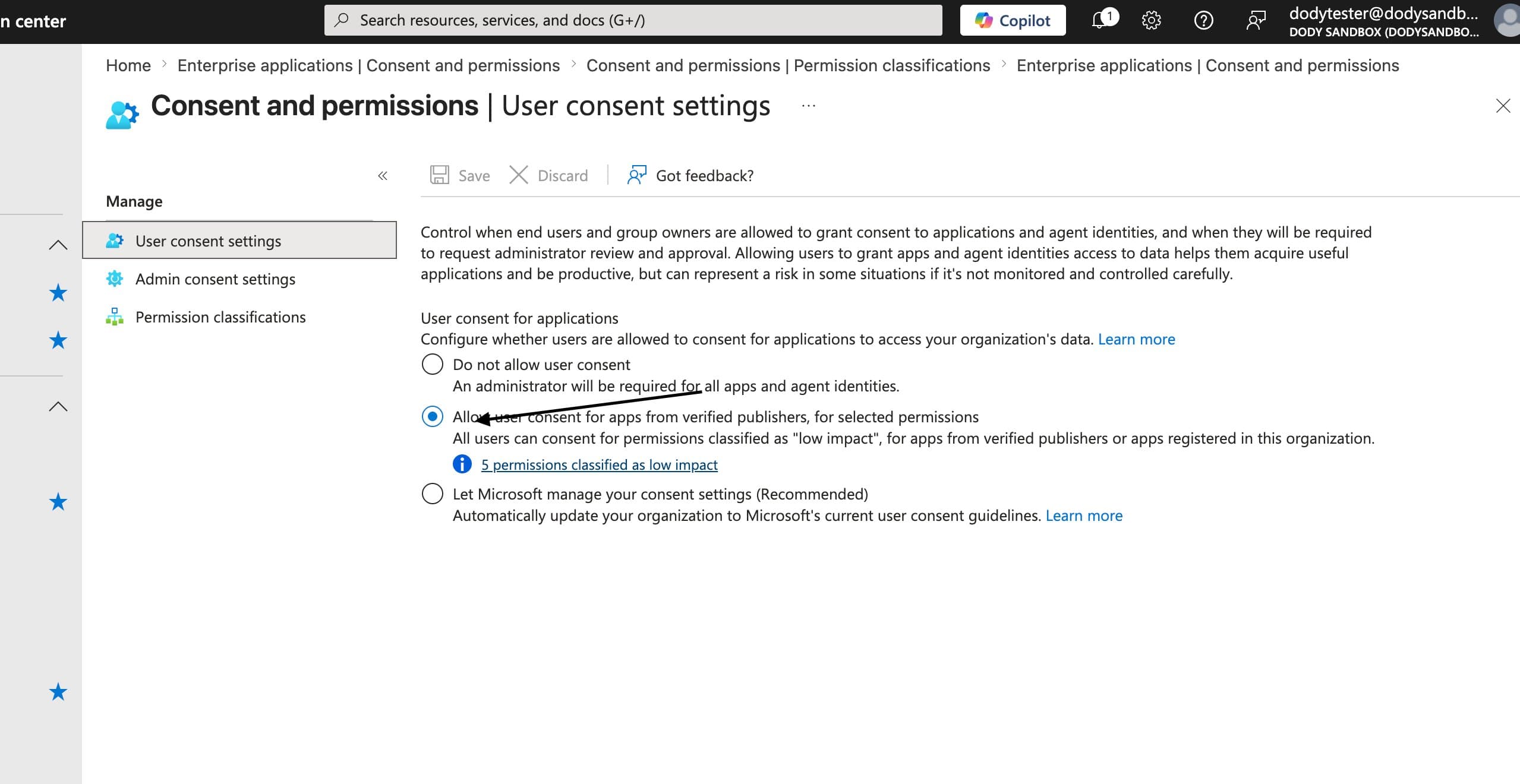
In the Microsoft Entra admin center, go to Enterprise applications → Consent and permissions → User consent settings.
Under User consent for applications, select "Allow user consent for apps from verified publishers, for selected permissions", then click Save at the top of the page.
Step 2 — Classify the required permissions as Low impact
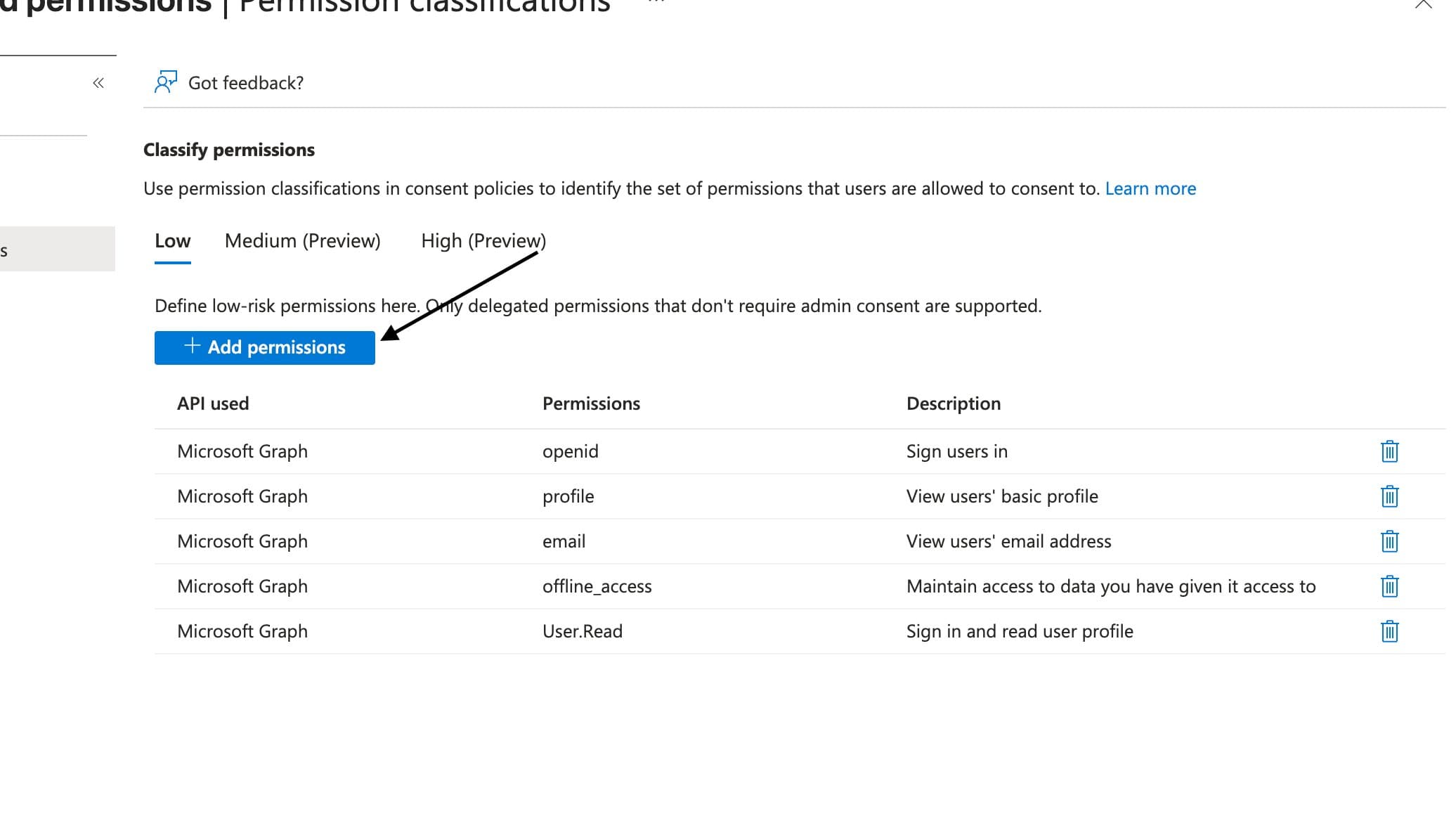
Still under Consent and permissions, switch to the Permission classifications tab. With the Low tab selected, click + Add permissions.
Choose the Microsoft Graph API
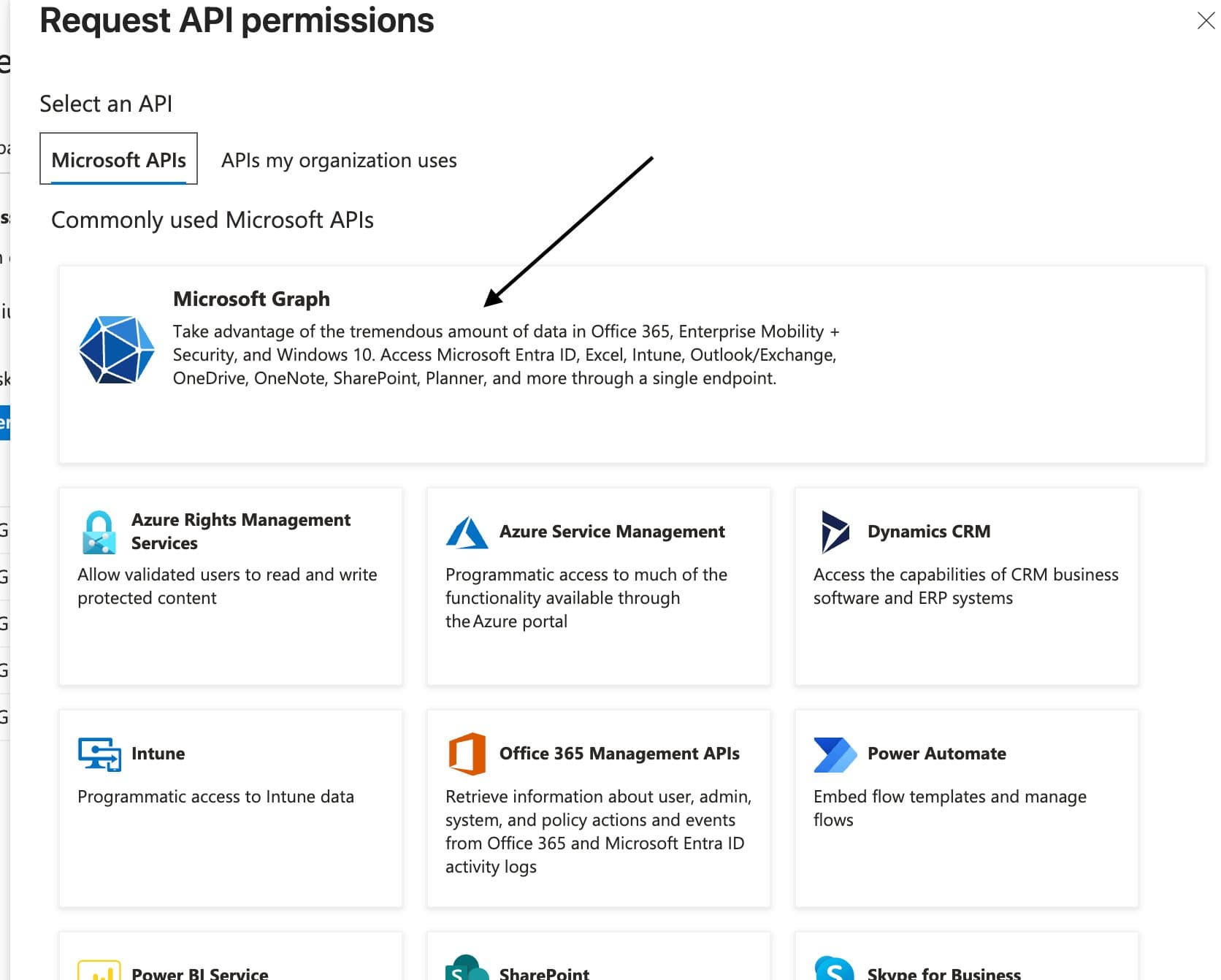
In the Request API permissions panel, on the Microsoft APIs tab, select Microsoft Graph.
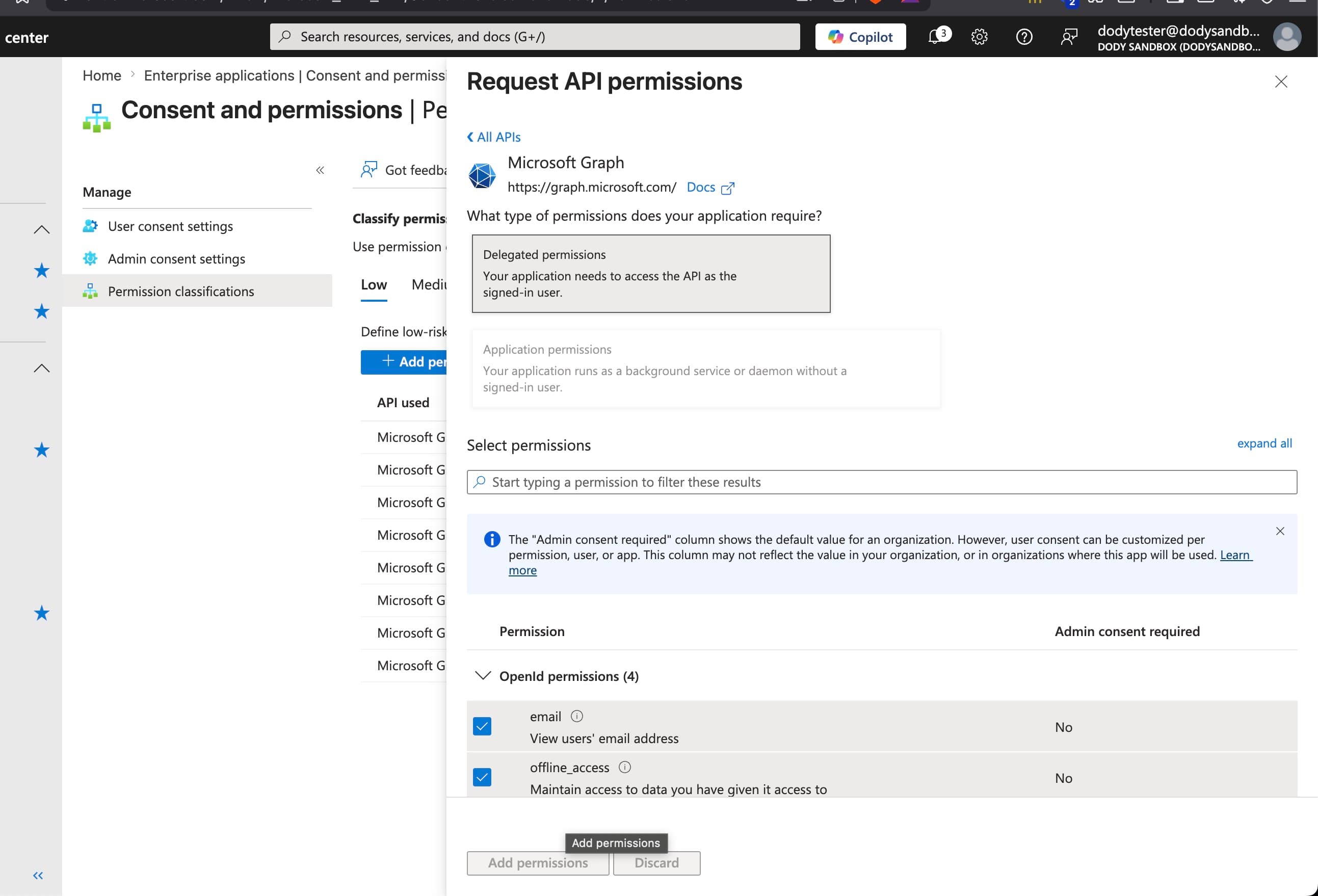
Under What type of permissions does your application require?, select Delegated permissions (not Application permissions). Tick all of the permissions in the steps below in this one panel, then click Add permissions at the bottom-left once you've added them all.
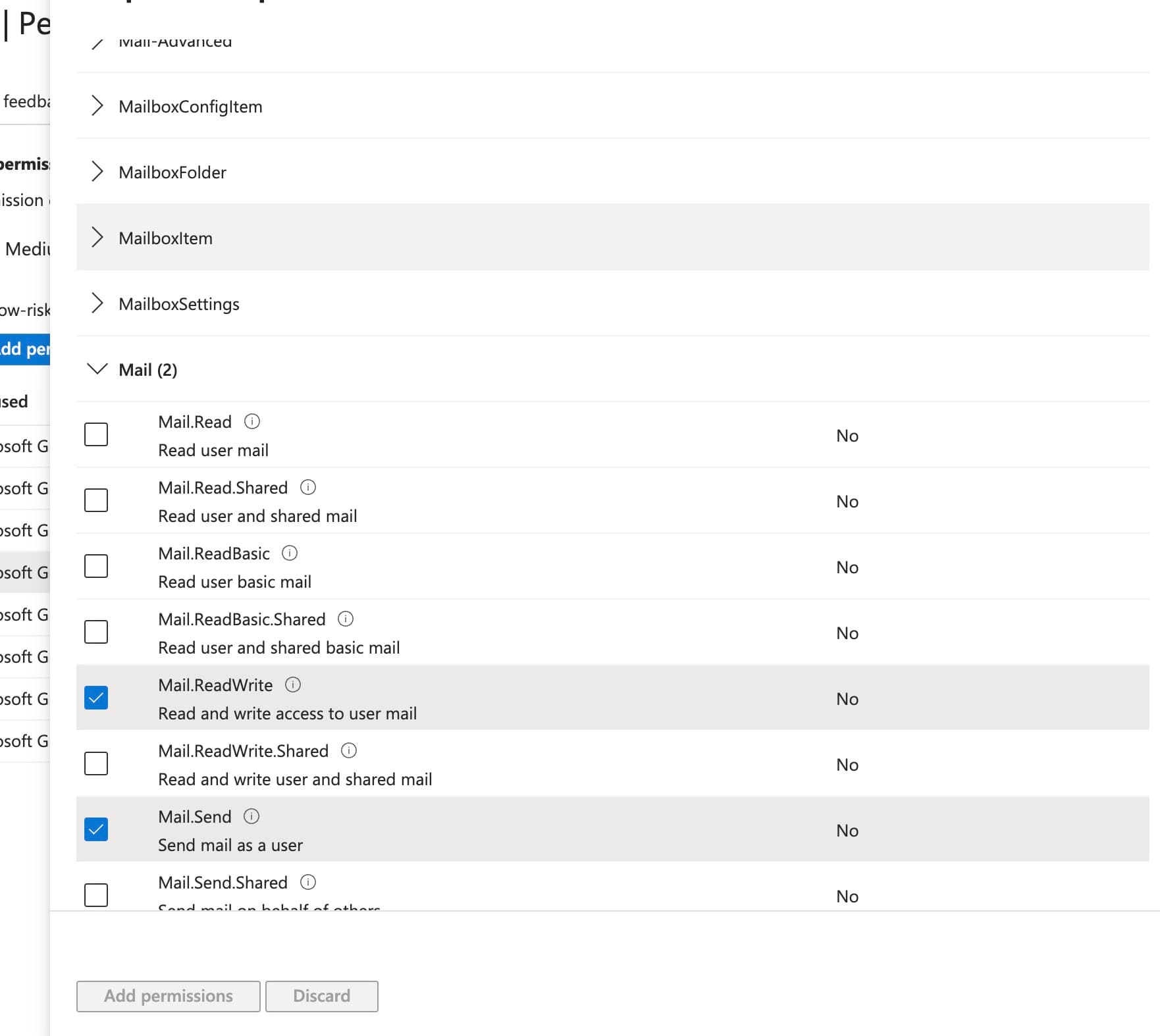
Add the Mail permissions
In the search box, type Mail, expand the Mail group, and tick:
- Mail.ReadWrite — Read and write access to user mail
- Mail.Send — Send mail as a user
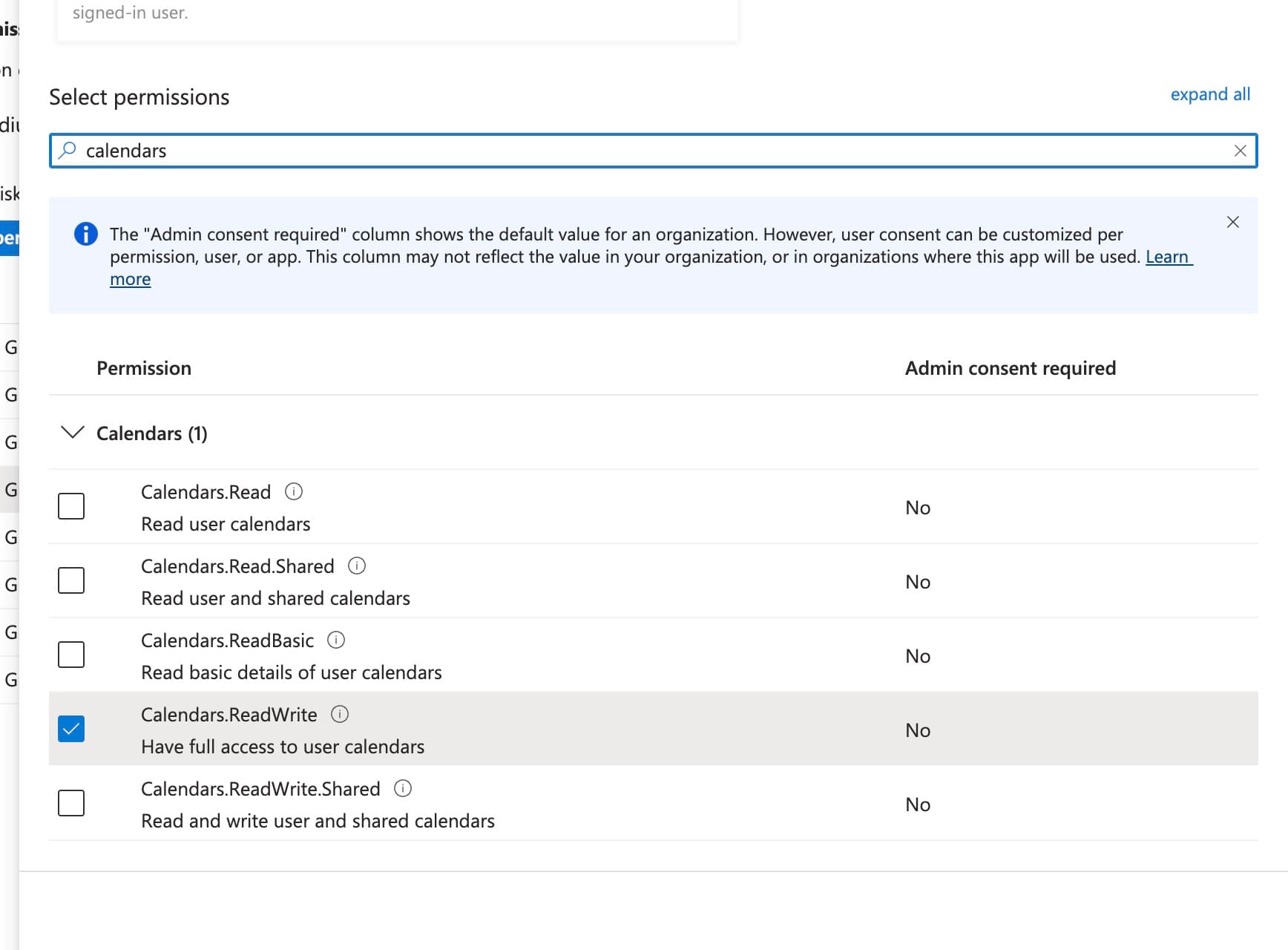
Add the Calendar permissions
Clear the search box, type Calendar, expand the Calendars group, and tick:
- Calendars.ReadWrite — Have full access to user calendars
Add the base sign-in permissions (if missing)
Before saving, check whether the five base sign-in permissions are already in the Low list. Some tenants include them by default; others need them added manually. If any are missing, add them the same way — search by name and tick the matching result:
- openid — Sign users in
- profile — View users' basic profile
- email — View users' email address
- offline_access — Maintain access to data you have given it access to
- User.Read — Sign in and read user profile
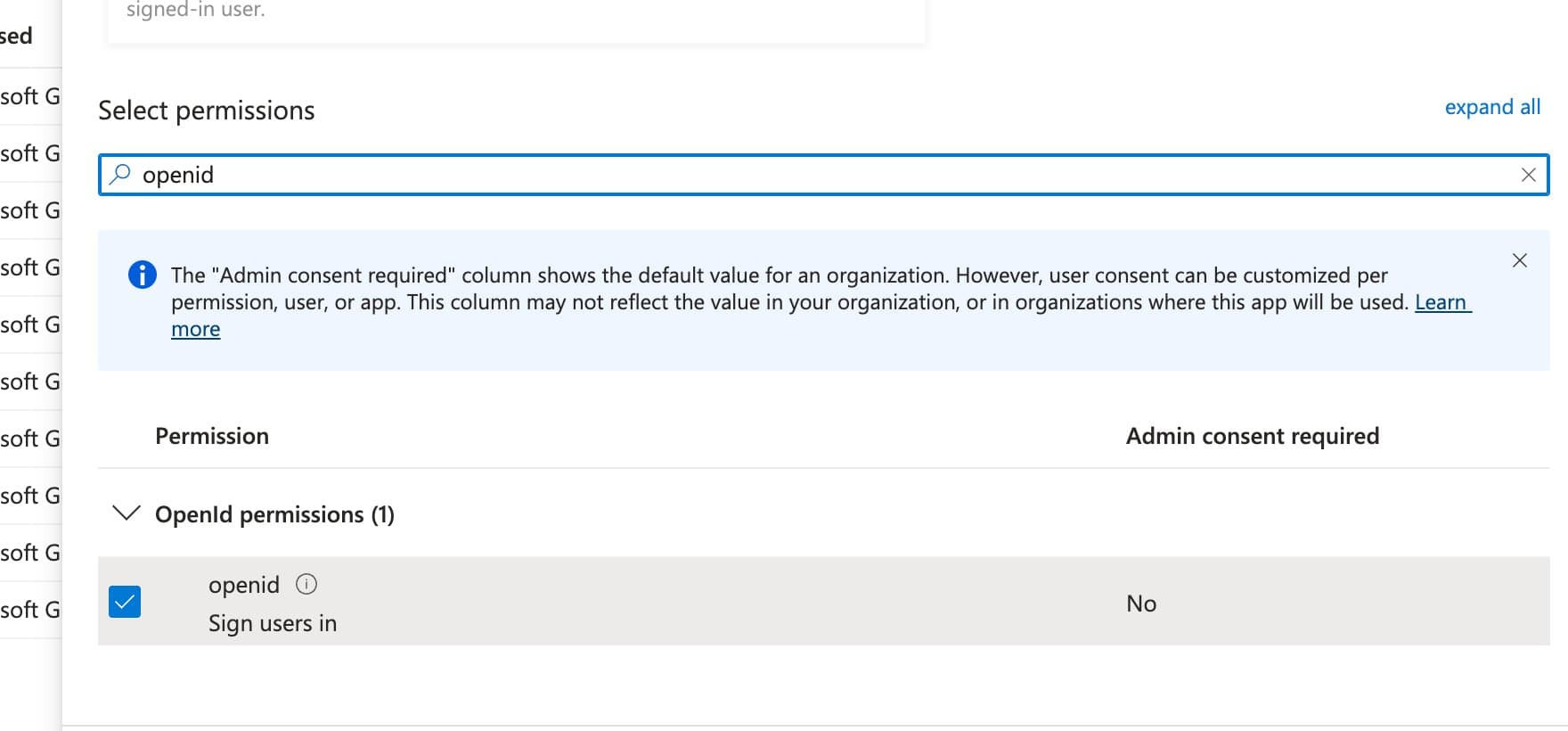
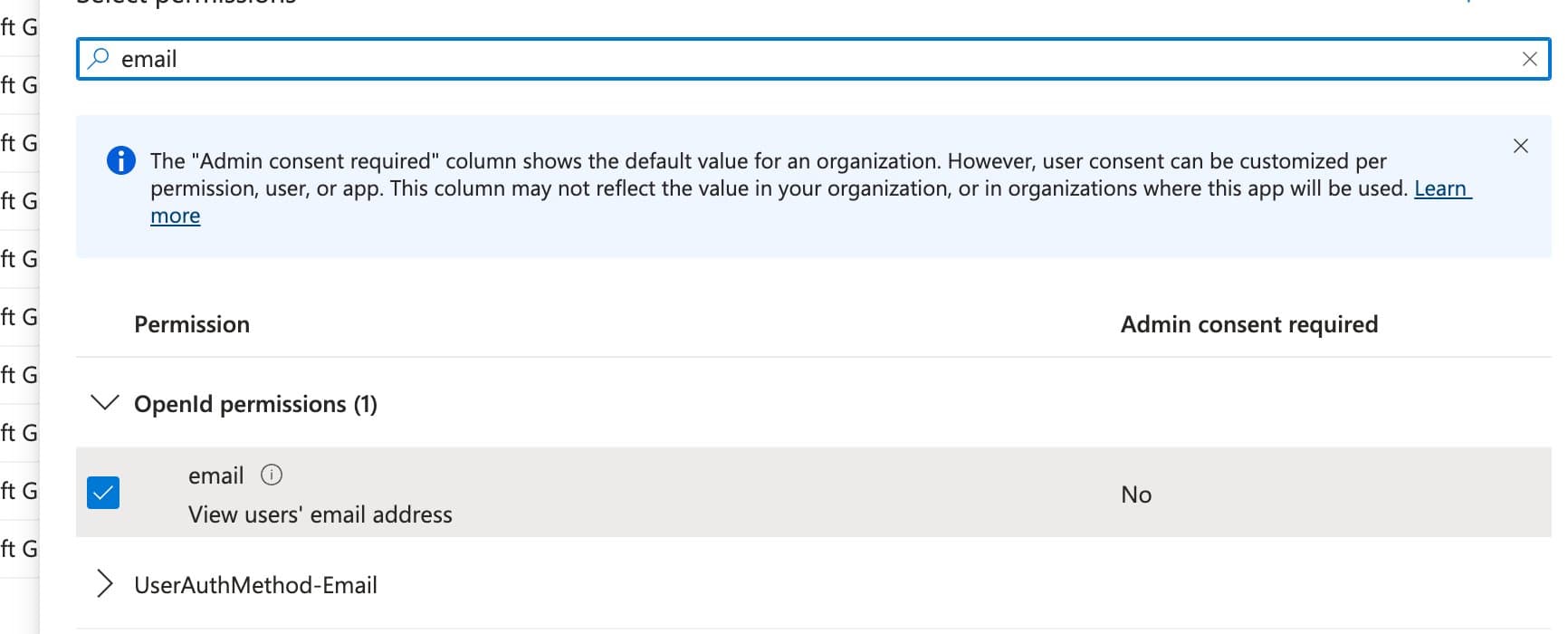
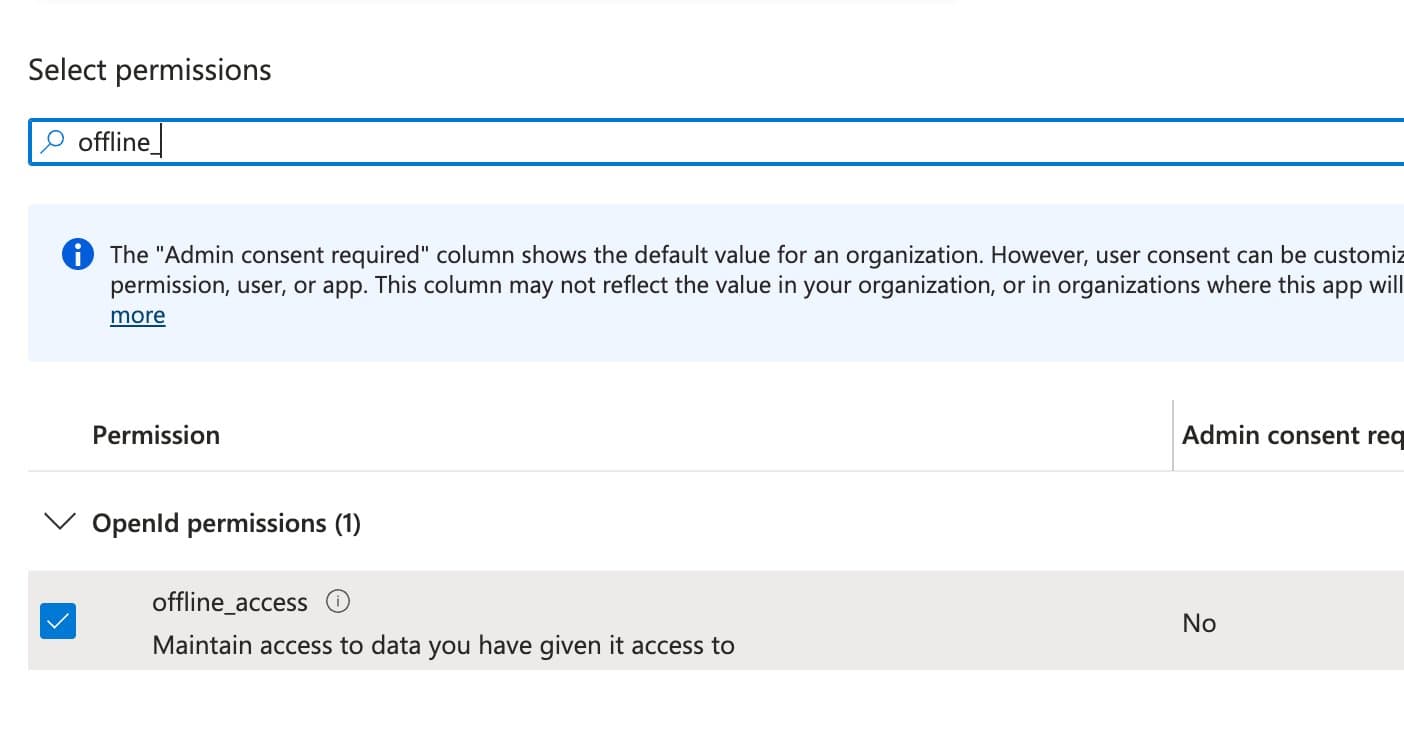
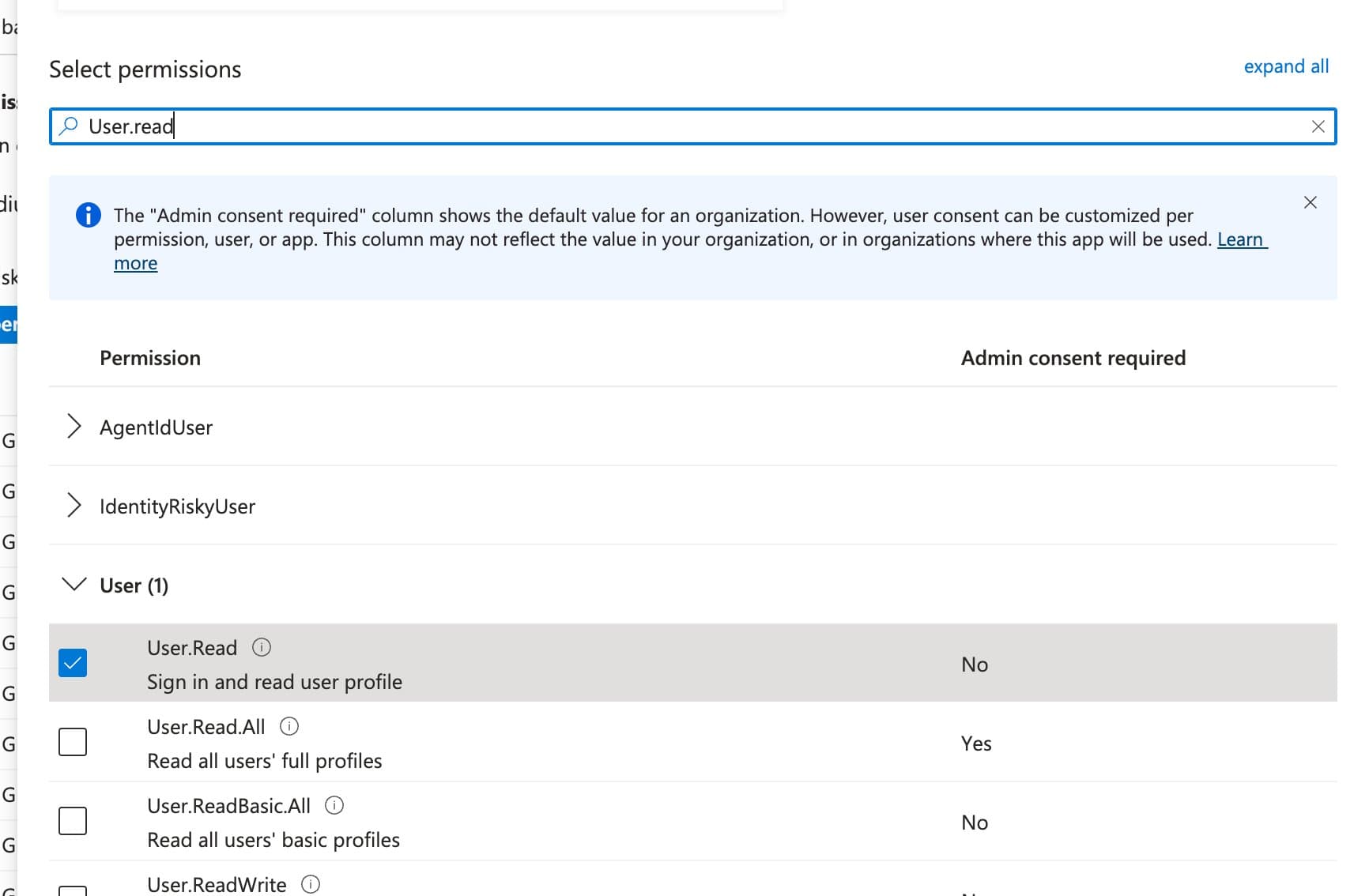
profile follows the same pattern — search "profile" under OpenId
permissions and tick the matching entry.
Save and verify the final list
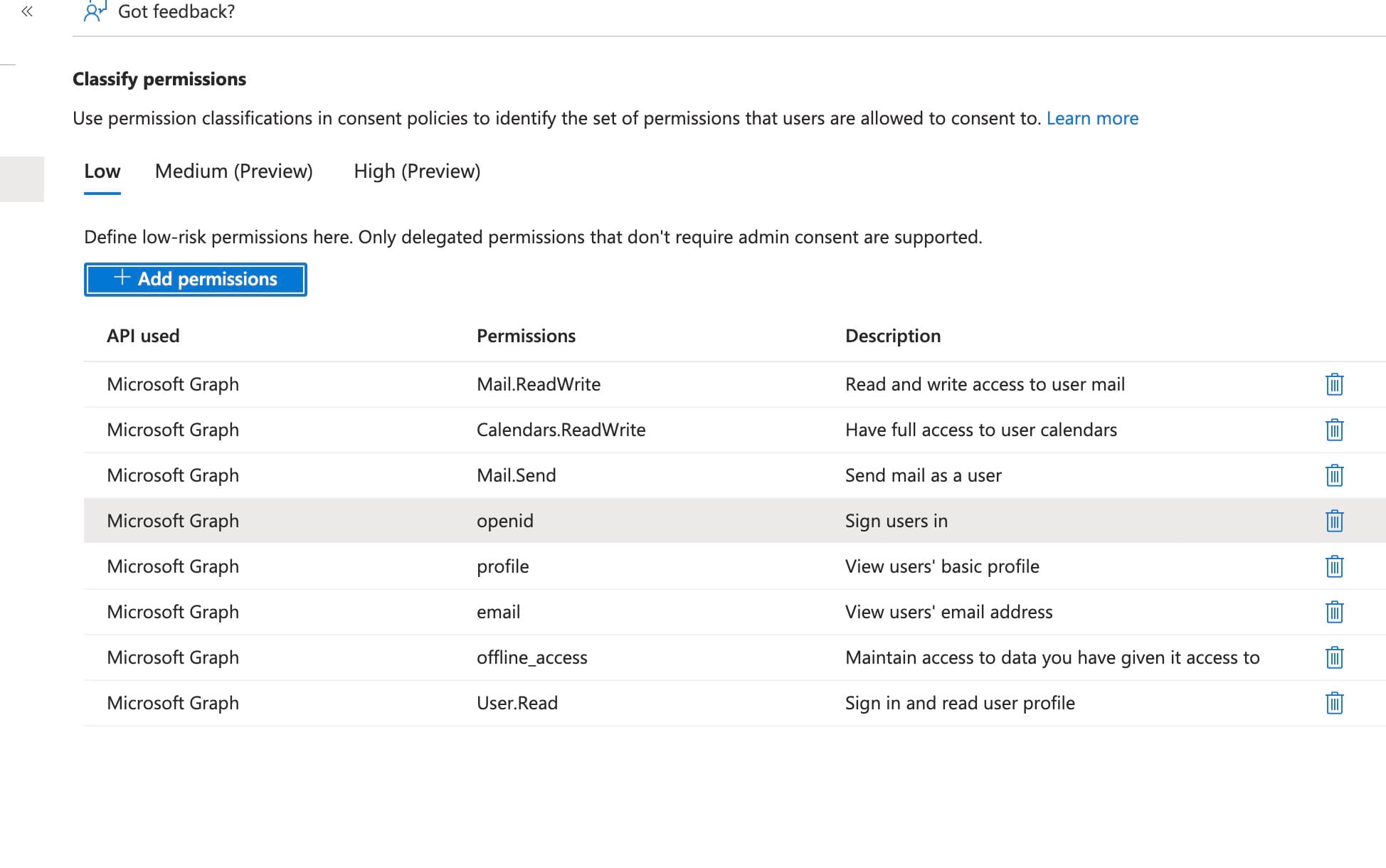
Click Add permissions at the bottom-left of the panel to apply your selections. Back on the Permission classifications → Low tab, confirm the list contains all eight Microsoft Graph permissions:
| API | Permission | Description |
|---|---|---|
| Microsoft Graph | openid | Sign users in |
| Microsoft Graph | profile | View users' basic profile |
| Microsoft Graph | View users' email address | |
| Microsoft Graph | offline_access | Maintain access to data you have given it access to |
| Microsoft Graph | User.Read | Sign in and read user profile |
| Microsoft Graph | Calendars.ReadWrite | Have full access to user calendars |
| Microsoft Graph | Mail.ReadWrite | Read and write access to user mail |
| Microsoft Graph | Mail.Send | Send mail as a user |
Step 3 — Ask the user to retry
Have the affected user return to Sophiie and connect their Microsoft work account again. Microsoft applies the change to future sign-ins only, so the user must retry after you save — the consent prompt should now complete without admin approval.
Why this is safe
This is Microsoft's recommended, least-privilege setup. It grants nothing organisation-wide — each user still consents only for their own mailbox and calendar during the normal sign-in. Classifying these permissions as "Low impact" simply tells Microsoft they're safe for users to approve themselves.
If it still doesn't work
- Confirm the user is signing in with their work account, not a personal Microsoft account.
- Ask the user to clear browser cookies for login.microsoftonline.com and try again.
- Check the change was saved on the User consent settings page.
- Contact Sophiie support with the user's email address, your tenant domain, and a screenshot of the error.